Dell r720xd and VMware ESXi 8.0

 -Even though the server or the CPU's are not on the HCL (Hardware Certified List), it does work.  Even with a Xeon E-2600 v0 CPU (with the CPU bypass setting).  The Perc H710 mini mono RAID card is recognized.  The onboard NICs are recognized.  

-Mellanox ConnectX-3 40Mbps ethernet network cards are no longer supported

-There are three different versions of Perc H710; the firmware and drivers are all the same.  The third revision is actually PCIe Gen 3, however by default it is set to Gen2 mode.  The change is easily done in the RAID card settings.  Thanks to the Art of Server for pointing that out.

-The XD model has twelve 3.5" hard drive bays.  In order to make that work there is no real-estate for an optical drive or the LCD screen normally seen on PowerEdge Servers.  There is an optional "flex-bay" kit which adds two 2.5" bays at the rear of the machine.  Interestingly when one adds the flex-bay, it disables the two onboard SATA connectors, even though the drives in the flex-bay are operated by the HBA/RAID controller.  This cost me an hour of my life looking into this!


HP Proliant DL80 Gen. 9

 Hewlett Packard Proliant DL80 Generation 9 is an entry level server with many corners cut to make the price cheaper than the normal enterprise hardware.

Here are a few notes:

-only one Power Supply

-no dedicated ILO port

-eight memory slots, and only four can be used in single CPU configuration

-the base model has no riser cards, and can only use three PCIe cards with a single CPU installed and five with two CPU's.  

-there is three? options for adding a riser card(s).  One of which is a GPU kit, which includes another fan

-converting to dual CPU's will need at least two more fans, three to make it "redundant".  it will operate without have the extra fans but it will complain about it at post and run the existing fans at full speed.

-the built in RAID controller is a B140i.  It has two SFF-8087 ("mini-sas") connections and two normal SATA connectors.  All of those connectors are controlled by the RAID card.  IE if one plugs a single drive into the normal SATA port one needs to go through the HP Storage Administrator and make a RAID0 in order to use it.  It only does SATA, SAS is NOT supported.  RAID5 is supported!  System RAM will be used for cache.  Interestingly Windows will see the virtual volume as intended, however my Linux utility, Parted-Magic, as well as the VMware installer, sees all of the drives individually.  The card can have it's personality switched to be a standard SATA controller.

-The standard backplane is four port, despite there being 8 drive bays. One can just add a 2nd four port backplane, the physical retention is there as is a second special power lead.   There also appears to be a single 8-bay option.   The standard backplane also claims to be not hot-swappable, I am not sure if that is because of the B140ii controller or the back plane.  Speaking of drive bays, the 3.5" bays do not have any LED indicators.  The backplane is connected to the system board via a SFF-8087 connector (at the motherboard end) to a four port SATA break out cable to the four ports of the backplane.  

I ordered a HP 790487-001, which is said to work for the DL60, DL80, and DL120.  This four port SAS/SATA backplane differs in that it has a SFF-8087 connector and little "fingers" to operate the LEDs for the drive sled.  

-VMware ESXi v7 does see the storage and the network cards.  However where as Windows does recognize RAID logical volumes, ESXi does not.   In this case a four drive RAID5 was setup, and VMware only sees four individual drives.  


Original backplane on the left, upgraded one on the right

Notice the "fingers" to operate the drive sled LED's

Both backplanes installed, note the SFF-8087 isn't installed yet.


Windows 10 Activation & Licensing (late 2023)

Ever since 2015 Microsoft has allowed computer users to "upgrade" to Windows 10 using the license key from Windows 7 and Windows 8.  This allowed many older computer that came from manufacture with Windows 7 to have a new lease on life by legally using a newer operating system.  During the late fall of 2023 Microsoft has closed this loop hole.  

Today if one takes a Windows 7 computer and installs Windows 10, it will not activate.  Even if one types the license key, it will not activate.  So where does that leave those of us with older machines hanging around?  Well...

YOU CAN CONTINUE TO USE A COMPUTER WITH AN UNACTIVATE COPY OF WINDOWS 10!

The computer will continue operate just fine, it will not one day stop working because of the activation status. 

There is some caveats though.  Here is a list of them:

-"Activate Windows" watermark shows up on the bottom right corner of the screen, and will be visible no mater what, even if one is watching a video, playing a game, or writing a novel.  

-premium features are locked out

-optional updates are not available, but critical updates are

-desktop personalization is restricted: wall paper, taskbar settings, lock screen, themes

https://royalcdkeys.com/blogs/news/unactivated-windows-10-what-are-the-disadvantages

https://www.pcworld.com/article/2104344/its-official-upgrades-using-windows-7-and-8-keys-are-dead.html

https://softwarekeep.com/blog/what-happens-if-you-don-t-activate-windows-10


Dell PowerEdge r930 hardware guide

 ***Work in Progress, will continue to update until the project is finished****

Dell PowerEdge r930 is a 4U, four CPU system.  This is some notes from working on them.  Finding information on them was sparse, so hopefully someone else can benefit from my research.  The biggest help was this source: from Dell.  This link as well, also the factory manual.


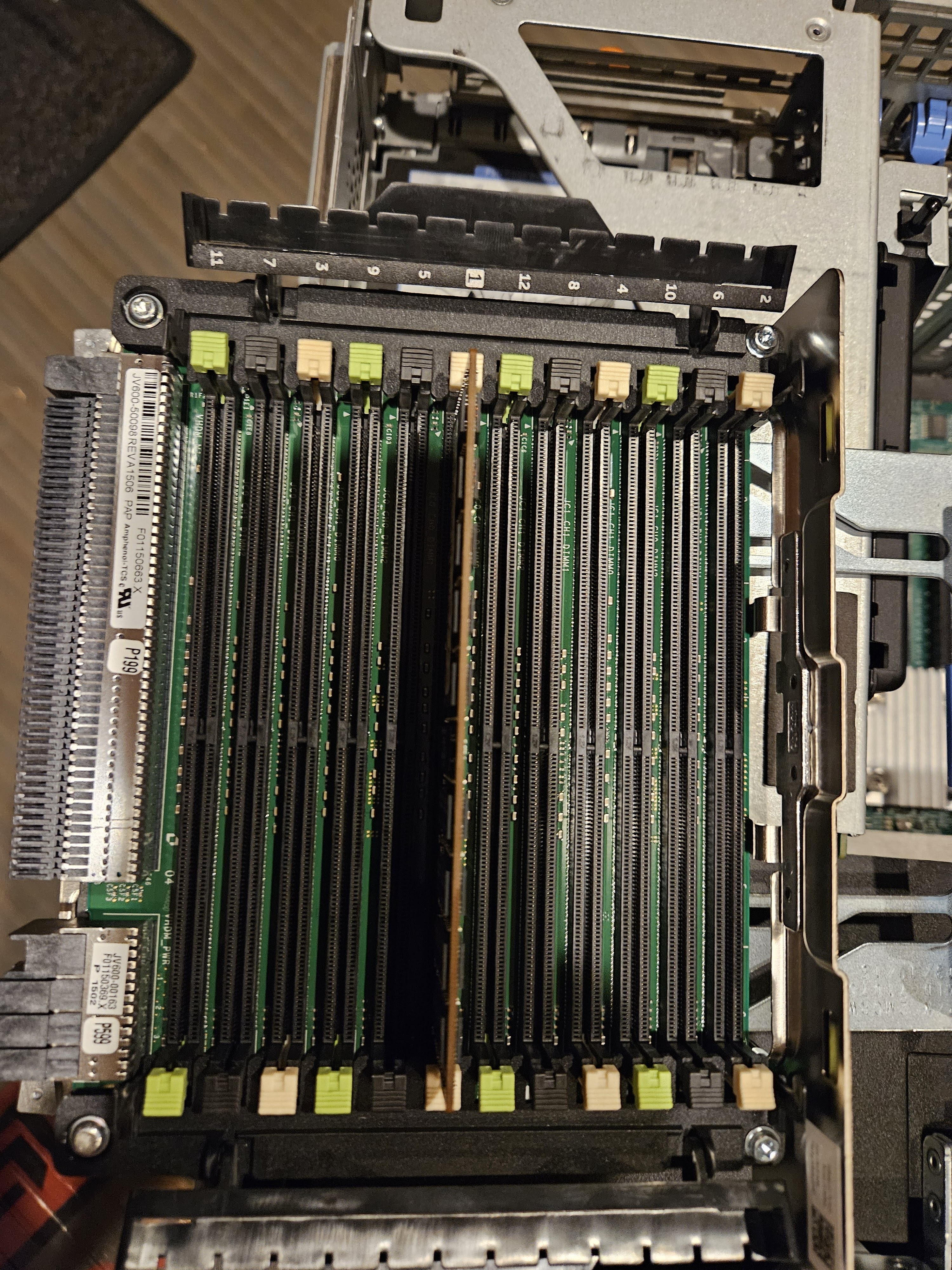
When using four CPU's the minimum RAM configuration is eight memory modules.  One stick of RAM in the #1 back of each of the eight memory riser cards.


It doesn't matter so much what hard drive controller is used, but it MUST bee in the very first slot.  Remove the I/O shield put it into slot one and use the lever to secure it down.   In this case it is a single Perch 730H.


To pull out the fan tray, just remove the outer four fans, then use the release to free up the handle.  In order to work on the CPU's or the back plane, all memory risers must be removed, the four fans, and the fan tray.

The network card is the same "form factor" as found on other r630/730's..it has the proprietary connection.  There is a special riser card that takes the special NIC and converts it to PCIe.  That card also has a special slot for one to install the SD memory card modules.


This is the network riser card without the NIC daughter board

ONE HBA/RAID card in a 24 drive system: the SAS cables from port A go to port A on the SAS Expander, as is the same for port B.  The top SAS port from the backplane goes into the furthest port on the SAS Expander.  The bottom SAS port on the backplane goes to the closest port on the SAS Expander.  Use the wrong cables or in the wrong spot, the system will complain.

The two back-plane cables are special (p/n: 085WG0 and 09HT8M) are special, even though they have an industry standard SAS connection, they are actually proprietary. Normal SAS cables will plug in, but not work. The cable from the SAS controller to the SAS expander is p/n: 0KN3YV.


These machines come standard with the ability to run four hard drives.  They can be converted to run twenty four.  It is a PITA, but very doable.  The first one I did took a few hours, the 2nd was a breeze.

Parts needed:

-backplane

-SAS expander

-backplane SAS cables

-SAS cables from HBA/RAID to SAS expander

-front bezel 


MORE "FUN"!!!!

The generation 13 PowerEdges can run U.2 NVMe drives!  The backplane is different, the cabling is different, a special controller card is needed.

The backplane backplane is very similar to the normal SAS/SATA 24 bay backplane, which the obvious physical difference being the addition of eight extra SAS-style connectors.   One can use the machine with the special PCIe cards run eight NVMe drives and sixteen SAS/SATA drives.  One can use the NVMe/SAS backplane and not use the special PCIe cards and cables, however every time the machine powers on, there is an error at post, that one must hit F1 to continue.

The cabling of the NVMe capable backplane with two PCIe controller cards.

The cabling of the normal SAS/SATA 24bay backplane.

Picture of the NVMe capable backplane with the extra connections circled in red.


Normal SAS/SATA 24 bay backplane, notice there is only two SAS-style connectors


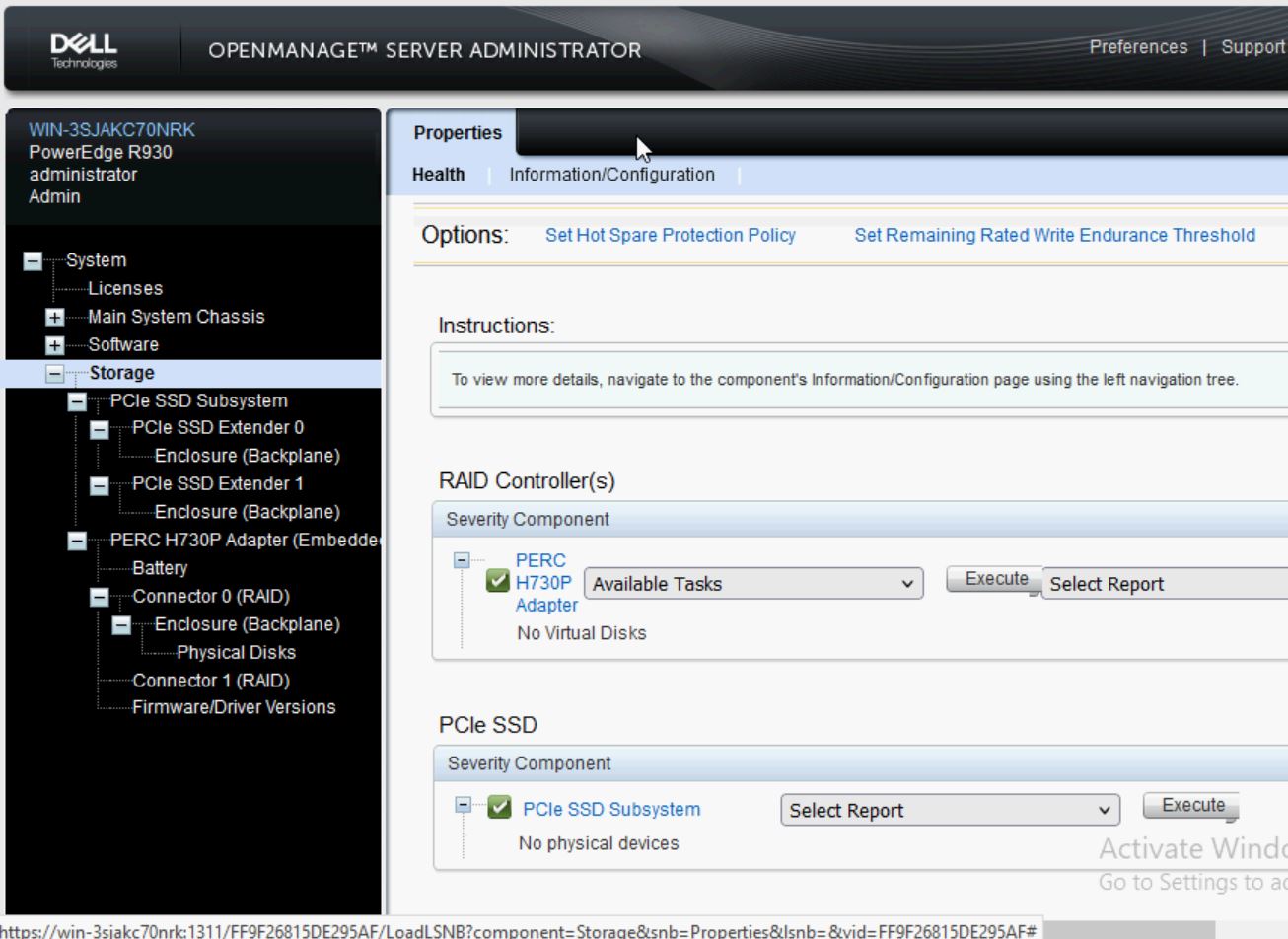
In iDRAC the machine recognizes the NVMe backplane, even though there is no PCIe controller cards installed. 

The error message during post, that is shown every time, that requires one to press F1 each time.

The NVMe setup also reserves eight of the drive bays for NVMe only, SAS/SATA drives will not work in those designated bays.


Here is what it looks like both NVMe cards and the cabling.  It is very tight to run all the cables.
The NVMe cables are special; besides being molded to "fit" into the r930 chassis, something about them is different.  The system will not allow one to use generic SAS cables nor get them out of order.  The part number for the r930 cables are as follows:
cn-09k88-48570-42h-007m (dp/n: 09rk88) and cn-066fk9-48570-42j-004n  (dp/n: 066fk9)


Quantum Lattus Part 2

 The Lattus has two 1gbps network cards, which is all fine, but even with mechanical disks it doesn't take too many of mechanical drives to saturate a 1gb NIC.  So I attempted to add a 10gb NIC.  

Turns out that the S30/40/50 using the the SuperMicro system board, the placement of the PCIe slots does allow for a standard height low profile card; in either direction, going the left side of the board (away from the CPU) there isn't enough room in height.  Nor going to the right as the card hits the CPU heatsink.

The S10/S20 does work either direction.  If going away from the CPU one must remove the 2.5" drive bay.  I didn't feel comfortable having the circuitry of the 10gb NIC basically touching the system board so I choose to run the NIC towards the CPU.  Doing so meant I had to remove the PCI-e SATA card.  Meaning I could only drive six hard drives, or five data, and one OS drive if running something like TrueNAS.  I found a 6gbps 2-port SATA card that is super small that fit in the other side; which brought my drive controller up to 8 drives.


Also I found these SuperMicro 10gb NICs that are based on the Intel x520 chip; they are physically smaller in nearly every dimension than the OEM Intel.


Quantum Lattus

 I don't know much about the product, it was designed to be a "cheap and deep", massively scale out storage system.   The nodes are "dumb" and controlled an automatically deployed by PXE boot a master node.   Western Digital did much of the early R&D, that intellectual property was sold to Quantum.  This particular line has reached it's End Of Life.

These servers hold 12 SATA 2.5" drives in a 1U extra deep case 33~34" long.  

The Lattus S10 & S20's have an Asus CMB-a9sc2 motherboard, it has a dedicated IMPI port, dual 1gb NICs plus a dedicated IMPI.  8gb DDR3 ECC RAM.  Six onboard SATA ports, a PCI eight port SATA card. It also has a 2.5" hard drive tray.  Intel Xeon E3-1220L v2 CPU at 2.3ghz (2 core, 4 threads, 17 watts).

Motherboard datasheet

The Lattus S30, S40, & S50's have an SuperMicro x10SL7 motherboard, it has a dedicated IMPI port dual 1gb NICs.  It has eight onboard SAS/SATA ports.  Intel Xeon E3-1230L v3 CPU at 1.8ghz (4 core, 8 threads 25w).  

 The BIOS password is "Adm1n", the IMPI credentials are ADMIN/ADMIN

S10/S20 

S10/S20 rear

S10/S20 with the SATA controller card removed.

S30/S40/S50


One of the S40's running TrueNAS


Formula 1

 Anyone find it odd that both VMware AND Broadcom both sponsor Formula 1 cars, but two different teams? BTW for those of you not familiar, Broadcom is in the process of taking VMware over.


Here is a bit how on how VMware is helping out McLaren.


10gb vs 25gb Ethernet when concerning electrical usage

Controlling the amount of electricity being used in computing use has become increasingly more important over the years.  Wither it is in the home lab, and the consumption directly affect one's own pocket book or the datacenter/server room has heating or power limitations. 

In this case I thought it might be interesting to look at what impact of networking speed has on electrical use. One could conclude from simply looking at number of and size of the heatsink on the cards that there must be a difference.  For this test my trusty Kill-A-Watt was pulled out of storage.  A normal desktop was used, a Dell 3rd Gen i3, the specifics are irrelevant.  Each time the machine was booted off of USB thumb drive into "Parted Magic" (a Linux Rescue Utility); I chose that OS over using Windows so other variables such as drive indexing or Windows Updates wouldn't skew the results. The machine was left to idle for 5 minutes to let things settle down before measurements where taken.  Extra GBICs where removed, and the same DAC cable was used.  The machine was plugged into a 10gb switch; no 25gb switch was available for testing, donations are welcome! :)

Bare machine: (no additional hardware) = 32watts

Machine w/ 10g Intel i520 NIC no cable =35watts

Machine w/ 10g Intel i520 NIC w/ cable =37watts

Machine w/ 25g Mellanox CX4 NIC no cable =40watts

Machine w/ 25g Mellanox CX4 NIC w/ cable =42watts

Machine w/ 25g Mellanox CX5 NIC w/ cable =41watts

Machine w/ 25g Broadcomm BCM51414 w/ cable =41watts

Machine w/ 25g Chelsio w/ cable =49watt (very hot to the touch!)

Intel on top, Mellanox CX4 on bottom.

Chelsio on top
Broadcom in the the middle
Mellanox CX5 on the bottom

Another future test would be to test under load.


Watchguard M270

 More electronic recycling.  This Watchguard M270 firewall, while is still supported and the latest code works on it, it was sent out for scrap!   So let's take a closer look at it.

This device had customer data on it, I didn't know the password, nor the IP scheme.  Next I attached to the console port, and rebooted it into the recovery mode, I didn't find a password reset option.  So a factory reset had to be done.

1. Power off the Firebox.

2. Press and hold the Reset button on the back of the Firebox.

3. While you continue to hold the Reset button, power on the Firebox.

4. Continue to press the Reset button until the Attn indicator begins to flash.

5. Release the Reset button. ...

6. Wait for the reset process to complete.

Once done, open a web browser to https://10.0.1.1:8080, use credentials admin & readwrite

Sadly the feature keys for this product are now gone. I didn't realize the reset would wipe them.  The box will not download it's key from the Watchguard mothership, it complains about being expired.  Now the box is pretty much useless as a Watchguard, as it will only allow one client to get through the network.  I have seen some people run PFsense on this hardware, so that could be an option.

Interesting observations:

-there is a way to get into the BIOS via the console cable, but no one seem to know the password.  There is a way to re-flash it. 

-CPU: Intel Atom C3558 @ 2.2ghz, 4 core, 4 threads, 16watt, BenchMark 2417

-Memory: 4gb RAM DDR3 sodimm

-Hard drive: 16gb mSATA

-Marvell 2.5gbps ports?  I saw mentioning of this during boot, but that might be an internal switch or something, as from the command line and the GUI all the ports report as 1Gpbs

-the power supply is a "wall wart"....the big plastic transformer/power supply is actually inside of the case, and the barrel plug fits into the system board.  Interesting!  I guess it makes replacement simpler, and from installation point of view I'd rather rack a full width appliance vs. a smaller one and then have to deal with securing the external transformer/power supply somewhere else in the rack.